Showing posts with label technology. Show all posts

September 04, 2015

Using Google Forms to Get Started with Scheduling Therapy

use google forms to get started with the scheduling process

When trying to attack the daunting task of scheduling therapy in the past, I have handed out scheduling forms for teachers to attach their schedule or to write down the times that will absolutely NOT work for me to meet with students from their classroom. This has worked fine, but still resulted in me shuffling through a dozen different teacher responses to figure out how to fit my students into the times available. And you know there are never enough times available.


This year I decided to approach this in a different way at one of my buildings. I created a Google Form for teachers to fill out in which they can select all the times that WILL and WILL NOT work for me to meet with their students. Here's how:

Step 1: Sign into your Google account and go to Google Drive.


Step 2: On the left-hand side of the screen, click "new", then "more", then "Google Forms".


Step 3: Make sure to name your Form at the top, and then you can start adding questions. The "Question Title" is where you type what you want your question to say. This is what will show up on the response spreadsheet (more on that later). I made my first question "Name" so that I would be able to see who each response belonged to.


Step 4: Select the Question Type. Google Forms has a lot of different question types, but for this scheduling form's purpose I chose "Checkboxes" because I wanted teachers to be able to select more than one answer. You can also choose whether or not you want your questions to be required. I used the "Help Text" to provide further instructions ("Please select all times that would work for students to go to therapy.")


Step 5: To add another question, click "Add item". You will go through the same steps as you did to create previous questions. In this case, I created another question that allows teachers to select all times that do NOT work on a specific day of the week.


Step 6: This is optional, but at the bottom of my form I added an additional question using the "Paragraph text" option. This is a space where teachers can type in any other information that might be helpful for me to know.


Step 7: When you've added all the questions you need, you can change the look of the form by clicking "Change theme".


Step 8: When you are ready to send your beautiful form out to all your teachers, scroll to the bottom of the screen and click "Send form". A pop-up box will allow you to copy a link to the form or type in email addresses to send invitations to.


Once people respond to your survey, their answers are automatically compiled into a handy spreadsheet for you to see their responses all in the same place! Now you will be able to have just one form to refer to when attempting to schedule students. (cue heavenly music)


Unfortunately, you're still on your own to put it all into an actual therapy schedule...but at least this is a great starting point! I liked that I wasn't shuffling through a stack of notes and teacher schedules to figure out where to put students on my schedule. So will you try this out? Let me know how it works for you!

If you'd like to watch a more detailed video tutorial, this is a great one on YouTube.

P.S. I also see this being a great tool for creating progress monitoring "quizzes" for students working on vocabulary skills!


August 28, 2015

Kahoot!

Hey everyone! This week was my first week back on the job after summer vacation. Two days of meetings, cleaning out new classrooms, and organizing my caseloads, followed by two days of sitting in district-wide professional development (BLERG). Now you know a lot of times those PD topics unfortunately don't really apply to us specialists very much. However, there was something I heard about that really stood out to me as a great resource to use in therapy: Kahoot!


Kahoot! is an interactive and motivating website which serves as a great tool for engaging students via online quizzes, discussions, and surveys. It's free to join and start creating your own Kahoots, and there are also publicly shared Kahoots which you can choose to use or customize for your own needs.


Kahoot! has three different kinds of interactive formats: quizzes, discussions, and surveys. No matter which format you are using, the concept is the same. Teachers start a Kahoot on their computer, and students join by using any device with an internet connection (computers, laptops, tablets, phones). Students don't need an account or to log in, they just need the Kahoot game pin to play.


Once everyone has joined the Kahoot, the first question will display on the teacher's screen, then the answers will show up. The thing is, though, that on the student screens the answers are not displayed. They only see the colors and symbols that correspond with each answer. This forces students to look up from their devices and be more interactive in the classroom.


Quizzes are probably the most popular use. Students get points for choosing the correct answer, and get more points for answering quickly.


Kids (and staff using Kahoot! in professional development sessions!) get really competitive to try and improve their score after each question and move up the rankings!


Surveys work like quizzes, except there are no points involved, and typically there is no right or wrong answer. Surveys would be great for getting feedback from students, or to use if you don't want to have the competitiveness that comes with scoring points, or if comparing scores might be bothersome to a student. I created a Kahoot! to help me get to know my students better during the first week of therapy next week, so hopefully that will be a fun way to learn about some of their favorites and set some good expectations for their year.


The third mode is discussions. A discussion Kahoot! only has one single question. A graph of student answers which display on the instructor's screen could be a great way to get a persuasive discussion or writing assignment started.


No matter which mode you are using, you can download a summary of student answers after each Kahoot! is completed. That's right, your data tracking is incorporated right into the game!

Ideas for Use:
- I am absolutely going to use Kahoot! quizzes for progress monitoring. Have students retake a Kahoot every few weeks and track their progress!

- Quiz mode would be great for reviewing classroom vocabulary with our students. SLPs could give a pretest/posttest Kahoot! to see how students are improving in their vocabulary understanding and acquisition.

- A Kahoot! quiz or survey could be a great way to expose students to stuttering myths and facts.

- Create a Kahoot for staff development to help bring awareness to the role of SLPs in school!

- When you create a Kahoot! you can choose for it to be public or private, and all the Kahoots you create will be saved in your account.

- There is also a Ghost Mode which allows students to play against their previous scores or compete against other classes.


========================================
How will you use Kahoot! in your therapy room?

March 11, 2015

Using Google Read and Write in Speech Therapy

Google Read&Write is a super handy resource to have in your SLP toolbox

Raise your hand if any of your students struggle to read. (Both of my hands are raised.) Now raise your hand if any of your students are motivated by technology. (Both of my hands are raised again!) Do any of your students take great lengths of time to complete writing tasks? (Now my feet are raised too!) Did you know there is a tool available to help all of your students, no matter what their speech/language goals are?


Google Read&Write is an extension for the Chrome browser, which increases students' accessibility to text! There are many useful features within the extension, and I'll be highlighting a few of my favorite features in this post. Mostly, I utilize the extension with students who are working on increasing their vocabulary and reading comprehension skills.

DICTIONARIES:


Dictionary

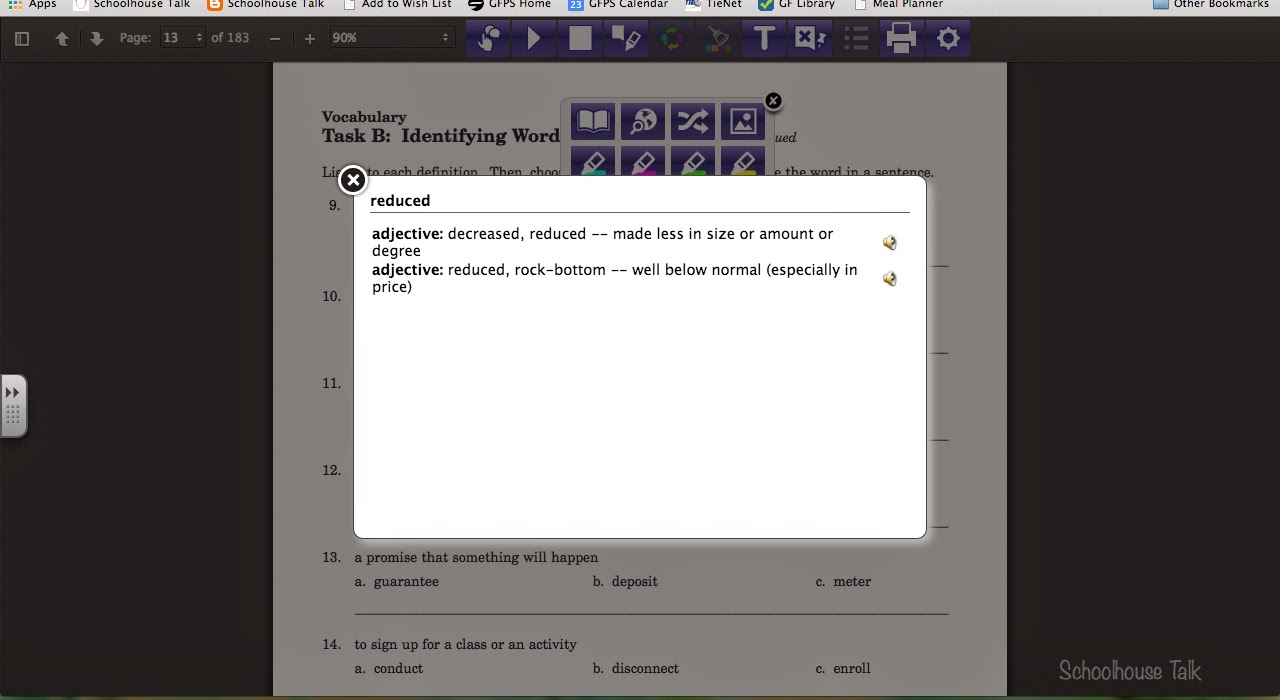
There are two dictionaries included: a picture dictionary and a talking dictionary. To use the dictionaries, simply highlight a word and click on the icon you'd like to use, and the dictionary will appear in a pop-up window.


How I Use It: For students who are working on building their vocabulary skills, we use the picture dictionary frequently while reading online passages. I just love the pictures that help solidify that word meaning for students. This is also a great feature for English Language Learners.


TEXT-TO-SPEECH:


Text-to-Speech is an excellent tool for many of my students who are struggling readers. Highlight the text you'd like read, then click the Play icon. Hover Speech will also read text aloud, simply hover over the text you'd like to hear instead of highlighting. You can even change the reading speed and choose from 5 different voices in the settings.

How I Use It: I use the text-to-speech tool a lot with students who are working on reading comprehension. They enjoy listening to the reading passage on the computer rather than having me read it to them or taking turns reading. Many of my students also practice using the text-to-speech tool since that is an accommodation they will be using on the upcoming Smarter Balanced assessment. We can practice using text-to-speech ahead of time so that they are comfortable using it when it comes time for the high-stakes testing. We want to make sure they are being assessed on their knowledge, not their ability to maneuver through the online test, right?

HIGHLIGHTS/COLLECT HIGHLIGHTS:

Highlights Icon

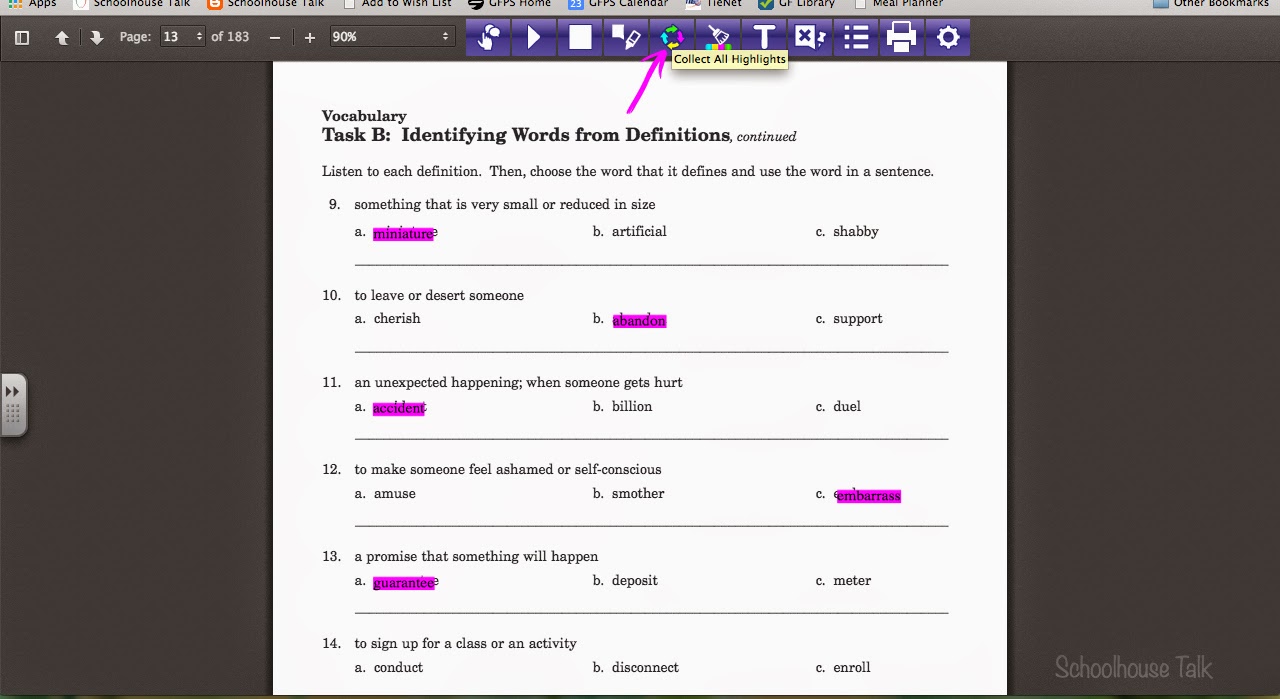
This is one of the BEST features. There are four different highlighting colors available. You can also collect the highlights, which will create a new document of all words that have been highlighted throughout the document.

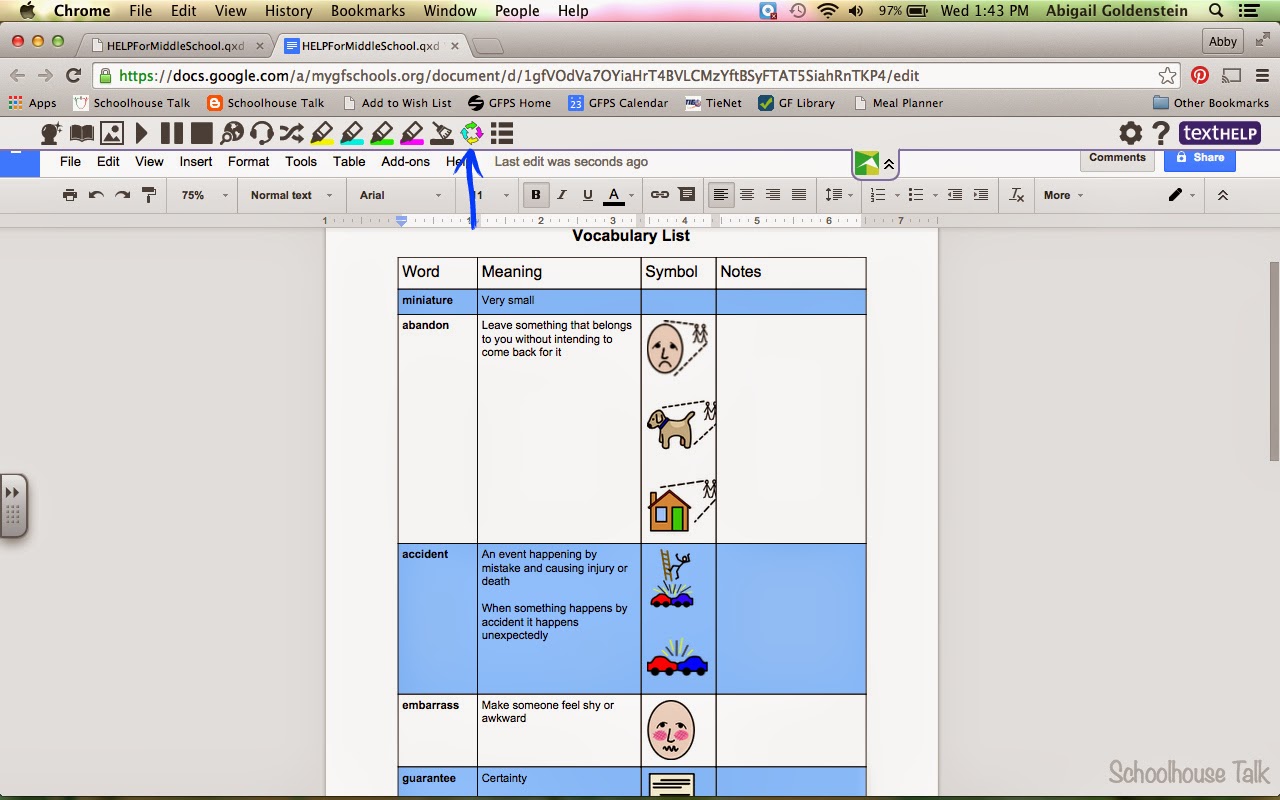
How I Use It: As we are working on vocabulary skills and reading passages, I have students highlight any target vocabulary words or words they are unfamiliar with. When we are finished, we can click the Collect Highlights icon, which generates a new document containing all the words that have been highlighted as well as their definitions and a picture icon. Now my students have their own little dictionary to take home!

Document created when you click "Collect Highlights"

I've also used this feature with articulation students who are working on generalizing their skills into reading aloud and conversation. We will open a reading passage in Google Docs, then use Google Read&Write to highlight all the words in the passage containing their target sound. Saves on printing and paper.

SPEECH-TO-TEXT:

The speech-to-text feature is pretty self-explanatory. Students simply speak into the microphone on the computer and their words appear in the document.

How I Use It: Speech-to-Text is perfect for students who can't type or write very quickly. Some of my kiddos might take a couple minutes to write a complete sentence, and writing an entire paragraph would use up most of our session. With the speech-to-text feature students can get their thoughts down on paper, then review what they said to see if it makes sense. This is also a great tool to use with articulation students to help them monitor their sound errors while reading aloud or having a conversation. Visually seeing how their errors have an effect on their speech can help them become more aware of the changes they need to make and start self-correcting their errors.

MORE FEATURES TO LOVE:


- Word Prediction: If you've clicked this icon, a small pop-up box will predict which word you're trying to type - just like predictions that pop up on cell phones when text messaging.

- Simplify Text: This only works with certain documents, but if you click the icon, it will paraphrase an article to a simpler reading level.

- Fact Finder: If you highlight a word or phrase in your document and click the Fact Finder icon, a new browser tab will open with a Google search of the highlighted term.

*****************************************

If you haven't yet started using Google Read and Write in your therapy sessions, you need to start yesterday. It's mind-bogglingly useful and has so many great tools. There's always something for me to use with any of my students. It's a useful tool for students with who face language and academic challenges, and it gives students access to technology that might otherwise be too expensive. It only costs $1.50 per student for my district to give access to students. What a deal!

Click here to view the getting started document and see how to install a free 30-day trial onto your computer. (If you talk with your district, they may be interested in purchasing licenses for students and staff, which are pretty inexpensive.)

==========
Abby is gearing up for next week: we're rolling out the new state testing system and we have three days of parent-teacher conferences. Double whammy!

January 22, 2015

Nonfiction Text Sources for Grades 3-8

resources for SLPs to find high-interest nonfiction reading passages to use with 3rd-8th grade

Have you noticed a push for using nonfiction and informative texts with our students? Standardized assessments and the Common Core both emphasize familiarity and use of informational texts. As a result, I have been attempting to focus more on using news articles and other informative texts with my students this school year.

Nonfiction passages are also great because they provide ample opportunity for progress monitoring. You can have students use context clues to figure out what vocabulary words mean, predict what will happen next, infer feelings and actions, answer comprehension questions, retell what they learned, paraphrase the article in their own words, identify the main idea by coming up with an alternate headline, and practice articulation targets. Whew, talk about a one-stop shop! Here are my go-to FREE resources for finding high-interest nonfiction reading selections for 3rd-8th grade students.


This website is great. It has tons of articles about a variety of subjects. When you click on an article, there are many options to help students:


Underneath the headline you can click the "CCSS" button to see how this passage can be used to address critical thinking skills, vocabulary, and writing for various grade levels. The "NAS" button matches the article up with National Academy of Science Standards. The blue grade levels button tells you which students the article is appropriate for. Click the green "word search" button to complete a word search of vocabulary words from the article.


DOGOnews also has wonderful vocabulary tools. A floating list of vocabulary words always stays in view even as you scroll up and down the page. Each vocabulary word within the article is hyperlinked - just click the blue word to see its definition. Love that feature!

Other superb features include comprehension questions and critical thinking questions to complete after reading, and hyperlinks to geography locations mentioned in the article.


Newsela is another go-to resource that should be bookmarked on all your computers/tablets. You can register for a free account to access this entire site. A neat thing is that you can set up classes of your students if you'd like. If you do that, you can assign articles to students and you can see their answers to the writing questions. I haven't tried this feature yet since we go over articles together in our therapy sessions.


The absolutely best feature of Newsela is that you can adjust the reading level of each article. Just click on the lexile levels in the blue bar on the right hand side of the article. When you adjust the lexile level, the grade level and word count information below the title of the article will change (see the picture above).

Some articles have writing prompts or quizzes, which can be accessed in the blue pane on the right-hand side of the screen. The quizzes are great because they address main idea, summarizing, recalling details, and defining vocabulary from context!


There are many other useful kid-centered news sites out there, but these two are my favorites and most-used. Others include:
Are you using nonfiction texts with your students? Comment below with your favorite resources!

==========
Abby read the rock-climbing article 5 times today.

November 20, 2014

So You're Not at the ASHA Convention...

5 things to do if you're missing out on the annual ASHA convention

So you're not at the 2014 ASHA convention. Me either! And the constant barrage of pictures and posts on social media is tough to look at. So what are those of us on team #noASHA supposed to do (besides cry on the inside)??

Team #noASHA

1) Live vicariously through Instagram, Twitter, and Facebook.


Yeah, there are tons of pictures and status updates that show all the fun we're missing out on. But it's also fun to see everything that's going on. With all the constant updates, it even feels kinda like we're there. A little bit? Maybe...?

2) Watch your favorite movie related to speech pathology.


I'm talking The King's Speech, Wretches and Jabberers, The Diving Bell and the Butterfly, even My Fair Lady! You'll laugh, you'll cry. You may forget you're missing out on all the ASHA14 fun for a couple of hours. Until you check social media again...(see #1).

3) Complete some CEUs.

One of the best things about the ASHA convention is the opportunity to get all the CEUs you'll need until your next certification cycle all in one weekend. Missing out? Get some online CEUs! Autumn Bryant - Speech Language Investigator has compiled a great list of FREE online CEUs. Go check it out and get your learning on! And don't forget the FREE 0.5 CEU offered online by ASHA each month!

4) Try some retail therapy! You should probably go buy a new scarf.


Grab a latte while you're out. Then go home and apply your new Jamberry nails while you shop for helpful new materials on Teachers Pay Teachers. Retail therapy always makes things better.

5) Download some new apps for your iPad!


Tons of app developers discount the prices of their apps during the ASHA convention. May as well take advantage! I strongly recommend signing up for email alerts from Smart Apps for Kids. They send out one email per day with a list of free and reduced apps. They almost always highlight useful apps for special education and will be the best place to get updates of which apps are free or reduced during the convention.

So now you know what I'll be doing to pass the time during the ASHA convention. Who's on team #noASHA with me?!

Disclaimer: I would completely ditch Team #noASHA in a heartbeat to go to the ASHA convention. Hopefully next year!

==========
Abby has been to one ASHA convention: Chicago 2008!

May 03, 2014

SLP Facebook Frenzy!

20 SLP bloggers are giving you freebies May 4-5. Don't miss it!


Can you smell that? That's the smell of pure excitement! There's a Facebook Frenzy coming from your favorite SLP Bloggers, and it's going to be so much fun! If you aren't familiar with a Facebook Frenzy, here's the gist: you travel through a group of Facebook pages and download a FREE activity packet on each page! For real! There are activities for spring, articulation and language goals, Better Hearing and Speech Month, and more. You will not want to miss this!

https://drive.google.com/file/d/0B1kBl6dpZ6A_bnJGb1FoR2FOMU0/edit?usp=sharing

Here's a map of everyone who is participating. The map is interactive, so once you download it (by clicking on the image above), you can click on any of the pictures to get started. Or, just make it easy and start right here on Schoolhouse Talk's Facebook page. Each page links to the next in a circle, so you will eventually hop around to all 20 pages.

As you hop from page to page, you will look for a tab that looks like this:


Just click on that tab, and you will be able to download the free item for that page. After you download, click the flower or sign to move on to the next participant. Some things to keep in mind as you travel through the Frenzy:


The Facebook Frenzy will only last from 8am EST May 4th - 10pm EST May 5th, so get going! Have fun, enjoy your freebies, and take some time to write a quick 'thanks' on each Facebook page.

==========
Abby nearly screamed out loud when she was asked to join in this Facebook Frenzy.

March 22, 2014

Love It & List It - Fave Technology

my top 4 favorite forms of technology for use in speech therapy


I'm linking up with Speech Room News again this month for her Love It & List It link-up. This month's topic is favorite technology. Here's what I use and love in my speech room.

1) iPad


I feel like I'm preaching to the choir here, because the iPad and apps are EVERYWHERE, but it is truly the number one piece of technology I use every day. Obviously there are tons of apps out there which are great for use in the speech room, but the iPad goes way beyond apps too.

It's a timer.
It's a search engine.
It's a tv.
It's a library.
It's a fun game.
It's a writing tool.
It's a flash drive.
It's a scanner.

It's all that and more. I am so fortunate that my employer also sees its value and is willing to provide me with one. Now, if only I could triple the amount of memory available :)

http://slp123.blogspot.com/2013/02/quick-tip-protect-your-ipad-screen-from.html

BTW, I was supplied a case with attached bluetooth keyboard by my employer, which is great for writing reports on the go, but I'm looking for something less clunky sans keyboard for everyday use. What's your favorite iPad case? Let me know in the comments please.

2) Boardmaker Plus
 

Need a visual schedule for a student? Boardmaker. Need a token board to keep a student on task? Boardmaker. Need pages for a communication device? Boardmaker. Need a sheet of words containing target speech sounds for progress monitoring? Boardmaker. Need to write a social story? Boardmaker. It's such a versatile tool, and I use it all the time. Be sure to check out Boardmaker Share and Boardmaker Achieve to download ready-made activities from other users! Again, I am so very grateful to have this provided to me by my employer.

3) Voice Recorders


The top two I use are Quick Voice (on the iPad) and Audacity (on my laptop). They are both free to download, and perfect for taking language samples, screening a student, and recording story retell trials. I like Audacity on my MacBook Pro because I can turn it on and then tilt the screen down until almost closed so the student isn't distracted by the recording. However, I'm almost always working with students in their classroom or in the hallway and don't drag my laptop along, so I use Quick Voice on the iPad the most. Check it out!

4) Social Media


This isn't really something I use directly in therapy, but social media is definitely something that affects the activities I'm doing in therapy! Pinterest is overflowing with amazing therapy ideas! I have connected with a whole bunch of SLPs on Twitter and love using it to find information about current research and upcoming events. But my favorite right now is Instagram. It's such a great tool for connecting and interacting with other SLPs and I find a ton of great ideas from the creative people I interact with. I don't know what I'd do without these tools!

Schoolhouse Talk on Instagram
Schoolhouse Talk on Pinterest
Schoolhouse Talk on Twitter
Schoolhouse Talk on Facebook

So there you have it! My favorite technology tools for speech. What do you like to use? Go check out what other tools SLPs are using!

==========
Abby wishes there were 30 hours in a day so she could catch up on everything.